Gemini Omni Flash API Review: What the Preview Really Does
Hands-on Gemini Omni Flash API review: what gemini-omni-flash-preview actually supports, what stays exclusive to Flow, and real per-clip costs.

Gemini Omni Flash is Google's first "any-to-any" multimodal model that outputs video: you send text, images, or a previous result, and it returns a short clip with sound, now selectable up to 4K, that you can keep editing by describing changes in plain language. Google shipped it in public preview on June 30, 2026, together with Nano Banana 2 Lite, and the API model id is gemini-omni-flash-preview.
Quick answer, if you only came for one thing: the Gemini Omni Flash API supports text-to-video, image-to-video, reference-to-video with up to ten subject images (which combine with a starting frame), conversational editing, and video-to-video editing of a clip you feed it. It does not support seeds, negative prompt parameters, or turning the audio off — resolution now goes up to 4K and scene extension shipped since, both covered below. Duration control isn't in the documentation either, but the field exists and works — more on that below. If you saw Omni Flash demos inside Google Flow and expected the same toolkit from the API, you'll be disappointed. We integrated it into our generator during launch week, so this review is based on what the endpoint actually returns, not on the marketing page.
What the Gemini Omni Flash API actually gives you
The API exposes Omni Flash through the Interactions API (interactions.create), not through the generateVideos endpoint that Veo uses. That detail matters, because interactions are stateful. Each response carries an id you can reference later.
According to Google's Omni documentation, plus a week of poking at the endpoint, five tasks work today:
- Text-to-video. A prompt in, a clip out at up to 4K, soundtrack included.
- Image-to-video. Your picture becomes the opening frame and the prompt describes the motion.
- Reference-to-video. Subject images keep a character or product consistent in a new scene — the request takes up to ten of them, and unlike Veo they can be combined with a starting frame.
- Conversational editing. Pass
previous_interaction_idplus a short instruction, and the model changes the clip while keeping the rest intact. - Video-to-video editing. Send an actual video in as content with
task: "edit"and it comes back restyled — no interaction id needed, so it works on clips the model never made, including Veo renders and phone footage. The catch: the output is always exactly as long as the input, and the input is capped at 10 seconds.
The clip above came straight out of gemini-omni-flash-preview through our own pipeline, so you're looking at an actual sample, not a press asset. One text prompt: a paper sailboat drifting through spilled ink, "single continuous scene" to stop the model from cutting, and an "Audio:" line asking for paper rustle and ripples. We asked for the full 10 seconds. Turn the sound on; the audio is generated too.
Every clip runs 3 to 10 seconds at 24 fps. The documentation lists no duration parameter, and at launch we assumed the model just decides — ask for "a slow pan across a foggy harbor at dawn" and you get 9 seconds, or 4, take your pick. It turned out the request format quietly accepts a duration anyway, and it is exact: ask for 3 seconds and you get 3.008 of them, billed for three. That's what we expose in the generator, so anything cut to music is no longer a lottery.
The prompt doubles as the control panel for everything the API doesn't expose. Left alone the model tends to cut between several shots, so "single unbroken shot, no cuts" earns its place in most prompts; timecode ranges like [0-3s] ... [3-6s] ... do get followed; quoted strings are rendered as on-screen text with surprising accuracy. Our generator ships these as one-click snippets because we kept typing them by hand.
Audio is the second surprise, and a pleasant one. Every generation ships with sound: ambient noise, effects, sometimes speech if you ask for it. You can't switch it off, though. The only control you have is text, so we ended up appending an "Audio: ..." line to prompts and it works reasonably well.
What does Flow have that the API doesn't?
Google Flow is a full production tool wrapped around several models, and that wrapping is exactly what the raw API lacks. Flow gives you a Scene Builder for multi-shot sequences and preset camera controls (shot type, angle, movement). One nuance people get wrong about resolution: Flow renders at 720p by default too. The 1080p and 4K versions appear at the download step, as an export choice on top of the Veo render, not as a different generation mode. None of that tooling exists in gemini-omni-flash-preview.
Here's the honest comparison after a week of poking at both:
| Capability | Flow / Gemini app | Gemini Omni Flash API |
|---|---|---|
| Resolution | 720p render; 1080p / 4K offered at download | 360p–4K, 24 fps (1080p/4K upscaled) |
| Clip length | Scene Builder chains shots | 3–10 s, exact |
| Camera controls | Preset shot types, angles, movement | Text prompt only |
| Extend a video | Yes (through Veo) | Yes, chained in 3–10 s steps to 40 s total |
| Edit an existing video | Remix inside the app | Conversational, or video-to-video on any clip |
| Audio | On, with UI controls | Always on, prompt-only control |
| Seed / negative prompt | Hidden from user anyway | Not supported |
| Clips per request | One at a time | One per interaction, no sampleCount |
The documentation is upfront about some of this. Google's docs state that video extension and interpolation "are not supported," and the same goes for system instructions, temperature, and negative prompt parameters (they suggest writing negatives into the regular prompt, which in my experience works maybe half the time). Video references are listed in the API schema with a 3-second cap, but the docs admit the model doesn't process them correctly yet.
So the preview API is a narrow slice of what the model can do on Google's own surfaces. That's normal for a preview. It still stings when a client asks for a 1080p export and the ceiling is 720p.
Conversational editing is the feature that actually delivers
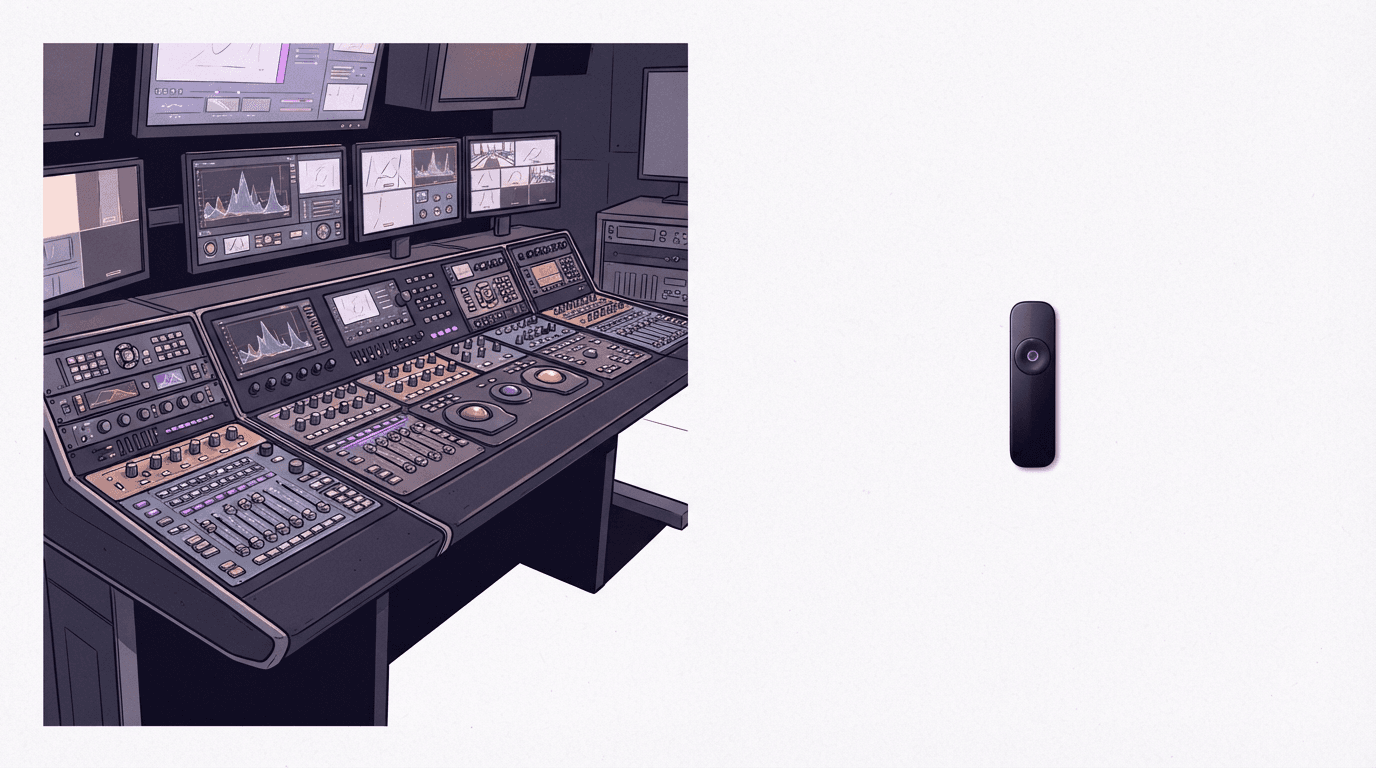
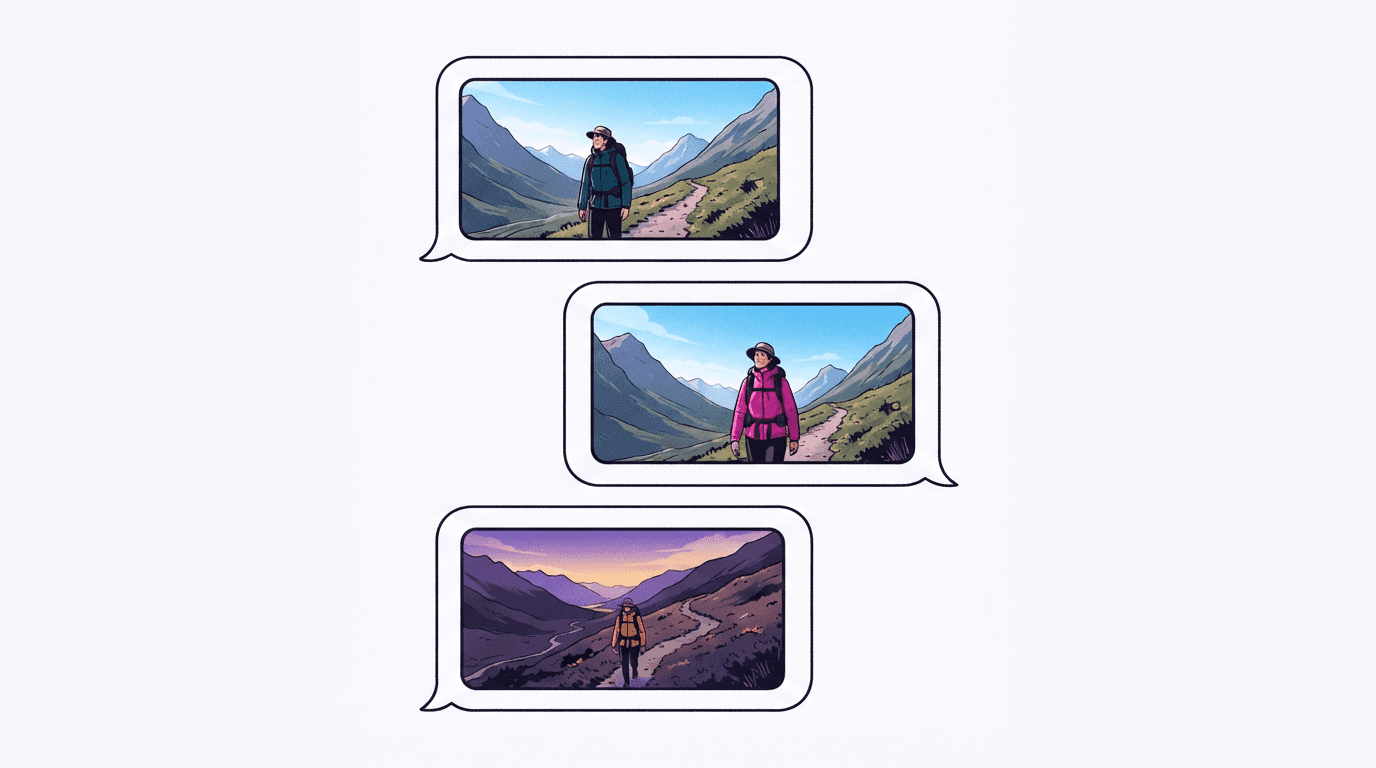
Editing is where Omni Flash earns its place. You generate a clip, look at it, then send a follow-up like "make the jacket red and slow down the camera" with the previous_interaction_id of the first result. The model rebuilds the video with your change applied and most of the original preserved. No re-uploading, no masks, no timeline.
Google's Gemini Enterprise documentation says you can stack up to three sequential edits while the session keeps context. In practice each edit is a fresh 720p render, so consistency drifts a little with every pass. Faces survive better than text on signs. Complex motion sometimes changes when you only asked for a color tweak.
One caveat we hit in production: parent interactions expire on Google's side. Try to edit a clip generated a while ago and the API may return a 404 for the referenced interaction. On BananaBanana we surface that as an expired video and refund the attempt, but if you build on the raw API, plan for it.
How much does Gemini Omni Flash cost?
Google's launch announcement prices Omni Flash at $0.10 per second of output video: a 3-second result costs $0.30, a 10-second one costs $1.00. While the duration looked like the model's decision, so did your invoice — same prompt, same settings, different bill.
On BananaBanana that flat rate is now split by resolution: $0.03/s at 360p, $0.10/s at 720p, $0.15/s at 1080p, $0.30/s at 4K — pick 3 seconds at 720p for $0.30 or the full ten for $1.00, and an edit costs the same per-second rate because it's a full re-render (it also comes back exactly as long as its source — the model can't stretch or trim). Nano Banana 2 Lite, which launched the same day, runs $0.03 per image here (Google's API rate is $0.034 for a 1K image). Full price list is on the pricing section.
Is ten cents a second — the 720p rate — good value? For a sound-on draft that would otherwise need a video generation pass plus separate audio work, probably yes — and a 3-second test costs less than a Veo clip. For silent b-roll, no. Veo 3.1 Fast makes cheaper silent clips at higher resolution.
Should you use Omni Flash or Veo 3.1?
Short version: they split the work, but not along the "draft vs final" line you might expect.
One thing to know before choosing: the quality gap between them isn't really about resolution. Veo 3.1 renders motion and physics more convincingly. Water behaves, fabric folds where it should, objects collide instead of ghosting through each other. Omni Flash gets these right often, not reliably, and on some clips you'll notice it without looking for it.
Pick Veo 3.1 when you need an exact clip length (you set whole seconds, 4 to 8; fractions aren't a thing), silent output, or steadier physics — Omni Flash has since caught up on 4K export, scene extension and first-and-last-frame control, covered above. That last trick works on either model now: feed the same image as first and last frame and you get a seamless loop, which is the entire trick behind looping background video. Veo is still the production tool for anything widescreen or physics-heavy.
Pick Omni Flash when the destination is a phone screen. For TikTok, Shorts or Reels, 720p is honestly all the platform preserves after its own compression, sound arrives baked into the same pass, and conversational editing beats re-prompting from scratch while you chase the idea. In that lane it's not the sketching tool. It's simply the better pick.
My personal workflow after two days: for widescreen client work I still rough the concept out in Omni Flash — three-second takes at $0.30 — then redo the keeper in Veo at final quality. For a vertical clip that's going straight to social, the Omni take often ships as is.
Both models are live in the BananaBanana generator, so you can compare them on the same prompt without writing a line of code or setting up a Google Cloud project. And if you want the condensed version of this review — capabilities, limits and the price on one page — that lives on the Gemini Omni page.
FAQ
What is gemini-omni-flash-preview?
It's the API model id for Gemini Omni Flash, Google's conversational video generation model released in public preview on June 30, 2026. It generates and edits 3–10 second clips with audio through the Interactions API, now spanning 360p to 4K resolution.
Can Gemini Omni Flash generate 1080p or 4K video?
Yes, now. The API originally shipped 720p only; BananaBanana's Omni Flash now offers 360p, 720p, 1080p and 4K, with 1080p and 4K delivered as an upscale rather than a native higher-resolution render. Google Flow still renders at 720p by default; its 1080p and 4K versions are offered at the download step on Veo renders.
Can I set the video duration in the Omni Flash API?
Yes, though you won't find it in the docs. The response format accepts a duration, and the result matches it to the frame: 3 seconds in, 3.008 seconds out, billed for three. We expose it as a 3–10 second selector in the generator. The exception is editing — an edited clip always inherits the length of the video it was made from.
Does Omni Flash always generate audio?
Yes, every clip includes a generated soundtrack and there's no flag to disable it. Describe the audio you want (or ask for "quiet ambient room tone") directly in the prompt.
Can Omni Flash extend or interpolate existing videos?
It can now: the current Omni Flash generation supports scene extension, adding 3–10 second continuations onto a clip up to 40 seconds total (the original release answered an extend task with "this model does not support video extension"). Conversational editing and video-to-video editing work as before, on a clip it generated or on any finished video you feed it, including a Veo render or your own upload; those keep the length of the input.